I remember sitting at my desk three years ago, staring at a spinning loading icon that felt like it was mocking my very existence. I had a massive folder of project assets that needed to move from my old workstation to my new setup, and instead of a seamless transition, I was stuck in a loop of failed cloud syncs and tangled USB cables that seemed to lose connection every time I blinked. It’s incredibly frustrating how much time we waste just trying to figure out how to transfer files between devices when the technology is supposed to be making our lives easier, not adding more friction to our workflows.
I’m not here to sell you on some bloated, subscription-based software that promises magic but delivers nothing but more clutter. I’ve spent years testing the most efficient, low-friction methods—from old-school hardware shortcuts to streamlined cloud workflows—so you don’t have to. I’m going to show you the exact, no-nonsense ways to move your data without losing your mind or wasting your entire afternoon. Let’s get your systems running the way they should.
Table of Contents
The Fastest Way to Move Large Files Without the Wait
If you’re trying to move a massive 4K video project or a bloated folder of high-res RAW photos, skip the cloud for a second. I’ve learned the hard way that relying on cloud storage synchronization for massive files is a recipe for frustration; you end up staring at a progress bar while your upload speed chokes on the bandwidth. Instead, if you want the absolute fastest way to move large files, you need to go physical. A high-quality USB cable file transfer is still king. By plugging your device directly into your workstation, you bypass the instability of Wi-Fi entirely and leverage the raw speed of the hardware connection.
For those of us who hate the clutter of cables, setting up a local network bridge is the next best thing. If you’re working within the same home or office network, using certain network file sharing protocols allows you to move data at much higher speeds than a standard wireless transfer. It’s essentially creating a private highway between your machines. It takes a few extra minutes to configure the permissions initially, but once it’s set up, you’re moving gigabytes in seconds rather than waiting for a slow upload to finish. It’s all about reducing that friction.
Wireless File Sharing Methods for a Cordless Life
If you’re like me, your desk is already a graveyard of tangled cables, so the last thing you want to do is hunt for a specific USB cord just to move a few photos. Wireless file sharing methods are the real winners here if you want to keep your workspace clean and your workflow moving. For anyone living in the Apple ecosystem, AirDrop is basically magic—it’s fast, it’s reliable, and it just works. However, if you’re dealing with the headache of transferring data between Android and iOS, you’re going to need something more platform-agnostic. Tools like Snapdrop or even just setting up a local shared folder can bridge that gap without needing a physical connection.
For a more “set it and forget it” approach, I usually lean on cloud storage synchronization. Services like Google Drive, Dropbox, or iCloud are great for small-to-medium files because they handle the heavy lifting in the background. You just save a file to a specific folder on your laptop, and a few seconds later, it’s sitting there on your phone. It’s not the absolute fastest way to move massive 4K video files, but for your daily documents and casual media, it’s the most seamless way to eliminate friction.
Five Pro-Tips to Keep Your Data Moving Smoothly
- Check your connection speed before you start. There’s nothing more frustrating than starting a massive transfer only to realize you’re on a spotty guest Wi-Fi network instead of your high-speed home setup.
- Organize your files into a single folder first. If you try to drag and drop a thousand individual files one by one, you’re just inviting errors and massive headaches. Zip them up, move the folder, then unzip them on the other side.
- Mind your storage limits. I’ve lost count of how many times I’ve tried to sync a massive library to a cloud service only to get that “Storage Full” notification halfway through. Check your destination space before you hit send.
- Use physical cables for the heavy lifting. Cloud services and wireless transfers are great for convenience, but if you’re moving hundreds of gigabytes, a high-quality USB-C cable will always beat a wireless connection for sheer reliability and speed.
- Verify the transfer with a quick spot check. Once the progress bar hits 100%, don’t just close the window. Open a few random files on the new device to make sure nothing got corrupted during the handoff.
## The Philosophy of Frictionless Data
“We spend way too much time wrestling with incompatible cables and ‘transferring’ progress bars. The goal shouldn’t be just moving data; it should be making the technology disappear so you can actually get back to your real life.”
Nathaniel 'Nate' Brooks
Finding Your Flow
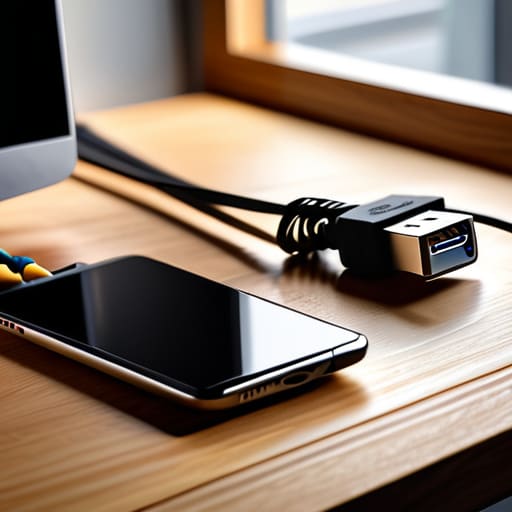
At the end of the day, there isn’t a single “best” way to move your data; there is only the method that works best for your specific setup. Whether you’re plugging in a physical drive to move a massive 4K video project or using a wireless handshake to send a quick PDF to your tablet, the goal is the same: minimizing the friction. You’ve seen that high-speed cables win for raw volume, while wireless tools are the kings of convenience. Once you’ve mapped out which tool fits which task, you stop treating file transfers like a chore and start treating them like a seamless part of your workflow.
My philosophy has always been that we shouldn’t let small technical hurdles dictate how much we actually get done. We spend way too much time fighting our tools instead of using them to build something meaningful. Don’t aim to have the most complex setup or the most expensive hardware; just aim to have a system that doesn’t get in your way. Get your files where they need to be, clear the digital clutter, and then get back to what actually matters. Life is far too short to spend it staring at a progress bar.
Frequently Asked Questions
Is it actually safe to use cloud services for sensitive or private documents?
Look, I get the hesitation. When you’re looking at a folder full of tax returns or private scans, “the cloud” can feel a bit too abstract and exposed. The short answer? It’s safe, provided you aren’t leaving the front door unlocked. If you use a reputable provider and—this is non-negotiable—enable two-factor authentication, you’re already ahead of most people. For the really sensitive stuff, I always recommend a little extra encryption before you even hit upload.
What’s the best way to move files if I’m working between a Mac and a PC?
This is where most people hit a wall, because macOS and Windows just don’t play nice by default. If you’re moving a few documents, a cloud service like Dropbox or Google Drive is the path of least resistance. But if you’re dealing with massive folders, skip the cloud and grab an external SSD formatted to ExFAT. It’s the only way to ensure both systems can read and write to the drive without a headache.
Will transferring large video files over Wi-Fi mess up my internet speed for everyone else?
The short answer is: yes, it can. Think of your Wi-Fi like a water pipe; if you’re running a massive hose to move a 50GB video file, there’s less pressure left for everyone else to shower or stream Netflix. If you notice your roommates complaining about lag, try limiting your transfer speed in the app settings or, better yet, plug in an Ethernet cable. It keeps the airwaves clear and the speeds consistent.
Are there any physical tools or drives I should keep on hand for when the wireless stuff fails?
Look, wireless is great until your Wi-Fi decides to take a nap or you’re trying to move a massive 4K video file that’s choking your bandwidth. When the cloud fails, go physical. I always keep a high-speed USB-C flash drive and a rugged external SSD in my desk drawer. If you’re moving stuff between a phone and a laptop, a dedicated thumb drive is a lifesaver. It’s manual, but it’s foolproof.


