I remember sitting in my first entry-level analyst role, staring at a dual-monitor setup that felt more like a cockpit of a fighter jet than a workstation. I was drowning in open tabs, notification pings, and a desktop so cluttered I couldn’t even find my actual files. I spent more time fighting my hardware than actually doing my job, and honestly, it was exhausting. Most of the advice you find online about tech tips for beginners is either way too technical or tries to sell you a subscription to some bloated productivity suite you don’t actually need.
I’m not here to turn you into a software engineer or convince you that you need a $3,000 setup to stay organized. My goal is much simpler: I want to show you how to strip away the digital noise. I’m going to share the exact, no-nonsense adjustments I’ve learned through years of trial, error, and way too many spreadsheets. We’re going to focus on small, actionable tweaks that actually reclaim your time and stop your devices from becoming another source of daily friction.
Table of Contents
Mastering Digital Literacy Basics Without the Headache

When I first started my career in systems analysis, I realized that most people aren’t actually “bad with tech”—they’re just overwhelmed by the sheer amount of noise. To get a handle on digital literacy basics, you have to stop viewing every new device as a puzzle to be solved and start seeing them as tools with predictable logic. Most modern interfaces follow a similar pattern: if you can master the concept of “layers” (like menus nesting within menus), you’ve already won half the battle.
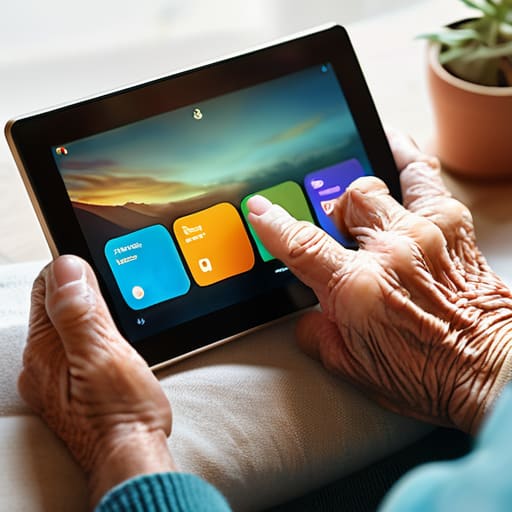
I often tell my parents that understanding modern gadgets isn’t about memorizing every single icon on a screen; it’s about learning how to navigate the intent behind them. For instance, if you’re looking at smartphone navigation for seniors or even just a new tablet, don’t feel pressured to learn the whole ecosystem at once. Focus on the “universal” gestures—the swipes, the long presses, and the back buttons. Once you realize that most apps are just different skins on the same basic framework, the intimidation factor starts to evaporate. It’s about building a mental map so you can stop guessing and start actually using your devices to make your life easier.
Understanding Modern Gadgets to Stop Wasting Time
We’ve all been there: staring at a new device, feeling like the interface is actively working against us. Most people think they need to learn a complex manual, but that’s a recipe for burnout. In reality, understanding modern gadgets comes down to recognizing patterns. Whether it’s a tablet or a smart home hub, most interfaces rely on a few core logic systems. Once you realize that a “swipe” or a “long press” follows a consistent rule across different brands, the intimidation factor starts to melt away. You aren’t learning a new language; you’re just learning a new dialect.
The real time-sink happens when we treat every new feature like a mystery to be solved through trial and error. Instead of clicking every button just to see what happens, I recommend taking ten minutes to map out the “home” and “back” functions first. This is a huge part of simplifying technology use—if you know exactly how to retreat to a safe starting point, you’ll feel much more confident exploring. Stop treating your devices like temperamental pets and start seeing them as tools with predictable logic. Once you master that mental model, you stop fighting the hardware and start actually getting things done.
Five Small Tweaks to Stop the Digital Friction

- Master your notification settings immediately. Most of the “noise” on your phone is just junk data fighting for your attention; go into your settings and kill every notification that isn’t from a real human being or a time-sensitive alert.
- Embrace the power of the universal search bar. Stop clicking through nested folders or hunting for apps on your home screen; whether it’s Spotlight on a Mac or the search bar on your phone, typing the name is always faster than manual navigation.
- Set up a password manager and actually use it. I know, it feels like one more thing to manage, but the mental energy you waste trying to remember “Password123!” is a massive drain on your productivity and a huge security risk.
- Learn the “Right-Click” (or long-press) philosophy. If you’re stuck on a device and don’t know what to do next, don’t panic—just right-click or hold your finger down on the object. It’s the digital equivalent of asking “what are my options here?” and it solves half your problems.
- Automate your most repetitive digital chores. If you find yourself doing the same three clicks every single morning—like checking a specific weather site or opening a certain spreadsheet—look for a way to create a shortcut or a “routine” to do it for you.
The Philosophy of Simple Tech
“Technology should be a tool that clears your path, not a hurdle that trips you up; if your devices are causing more friction than they’re solving, you don’t need a faster processor, you need a better system.”
Nathaniel 'Nate' Brooks
Cutting Through the Noise
At the end of the day, getting a handle on your tech isn’t about becoming a coding wizard or knowing every single shortcut in existence. It’s about the fundamentals we’ve covered: building a baseline of digital literacy, understanding how your gadgets actually function, and—most importantly—refusing to let them dictate your schedule. When you stop fighting your devices and start making them work for you, you stop leaking time. Whether it’s organizing your files or finally mastering those basic settings, these small, intentional adjustments are what turn a frustrating piece of hardware into a reliable tool that actually serves your life.
I know it can feel overwhelming when a new update drops or a setting looks like it’s written in another language, but don’t let the complexity intimidate you. You don’t need to master everything by tomorrow morning. My advice? Pick one thing, fix it, and move on. We aren’t aiming for some impossible standard of technical perfection; we are just aiming for a frictionless existence. Tech should be the engine that drives your day, not the roadblock that stalls it. Take it one step at a time, keep your systems simple, and reclaim your headspace.
Frequently Asked Questions
I feel like I'm constantly falling behind on updates—how do I know which ones are actually necessary and which are just annoying interruptions?
Look, I get it. Nothing kills a flow state like a “Restarting in 5 minutes” pop-up when you’re mid-project. Here’s my rule of thumb: security updates are non-negotiable. If it says “security patch,” do it immediately—that’s your digital armor. Feature updates? Those are optional. If your current setup isn’t broken, don’t feel pressured to chase every shiny new UI change. Schedule your big OS updates for Sunday nights so they don’t hijack your productive weekdays.
How can I secure my personal data without turning my digital life into a complicated mess of passwords and authenticators?
Look, I get it. Most security advice feels like it was designed by someone who hates convenience. But you don’t need a PhD in cybersecurity to stay safe; you just need a better system. Start with a solid password manager—it’s the single biggest friction-reducer I’ve ever found. It handles the heavy lifting so you don’t have to. Pair that with hardware security keys if you want to go pro, and you’re basically unhackable without the headache.
Is there a way to organize all these files and cloud storage systems so I actually know where things are when I need them?
Look, I’ve spent way too many hours digging through “Untitled_Final_v2.pdf” to realize that a massive folder structure is a trap. Instead, I use a simple “Three-Tier System”: Project, Archive, and Inbox. Everything new goes in the Inbox, and once a week, I move it to its permanent home. Also, stop relying on folder names alone—use consistent naming conventions like YYYY-MM-DD_ProjectName. If you can’t find it in five seconds, your system is broken.
How do I tell the difference between a legitimate tech notification and a scam designed to trick me?
Look, scammers are getting better at mimicking the real thing, but they almost always leave a trail of digital breadcrumbs. If a notification creates a sense of “urgent panic”—telling you your bank account is frozen or a virus is destroying your drive—that’s your first red flag. Real companies don’t use fear tactics. If a pop-up asks you to click a link to “verify” something immediately, don’t touch it. Close the tab, go to the official site manually, and check there instead.


